

Practice reviews and feedback mode
Turn on practice reviews, choose the work they cover and how feedback is sent, and approve, correct, or withdraw feedback.
Practice reviews check your workspace's work against its practices and record observations. The feedback mode decides whether feedback on the work waits for your approval. Workspace admins and owners use Review settings and Practice reviews, under Administration → Practices.
Reviews, observations, and feedback
A review records one observation for each practice that applies: Met, Not met, Does not apply, or Could not determine. Hephaestus writes feedback from the observations. Feedback can appear on the work, on the developer's Practice profile, and in their conversation with Hephaestus. Practice feedback describes each place as the developer sees it.
If Hephaestus cannot capture a source that a practice needs, it records no observation. The practice is withheld for that work, with a reason. A withheld practice says nothing about the work.
Practice reviews has five tabs: Overview, Reviews, Observations, Problems, and Feedback. Overview shows the feedback that waits for you under Needs you.
Feedback mode
| Mode | What happens |
|---|---|
| Off | Reviews record observations. No feedback reaches the work, practice pages, or conversations. |
| Approve first | Feedback on the work waits until a workspace admin approves it. Feedback on practice pages and in conversations needs no approval. This is the default. |
| Automatic | Feedback goes out after all checks pass, without approval. |
The workspace default applies to every practice group and practice. You can set a different mode for one group or one practice.
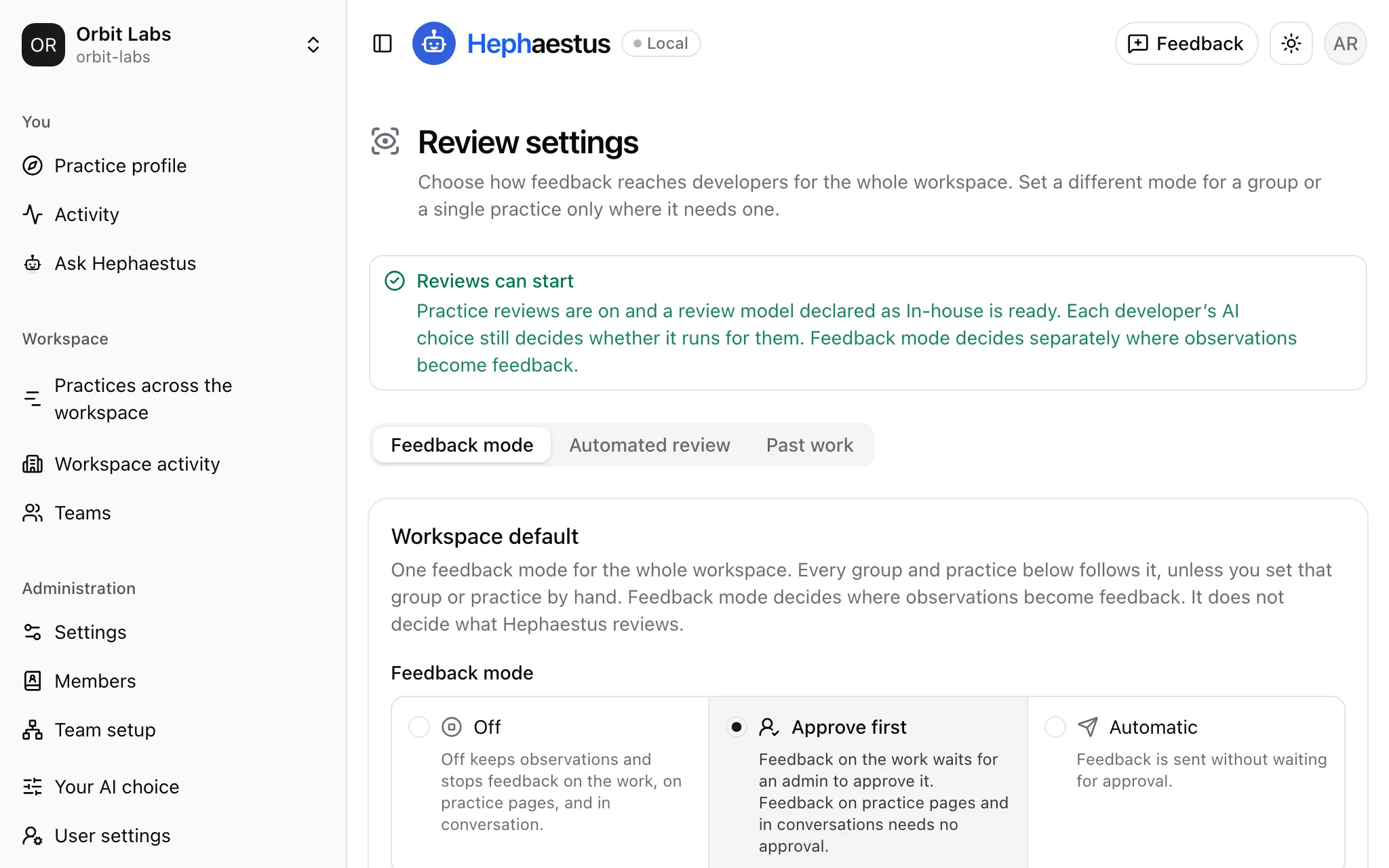
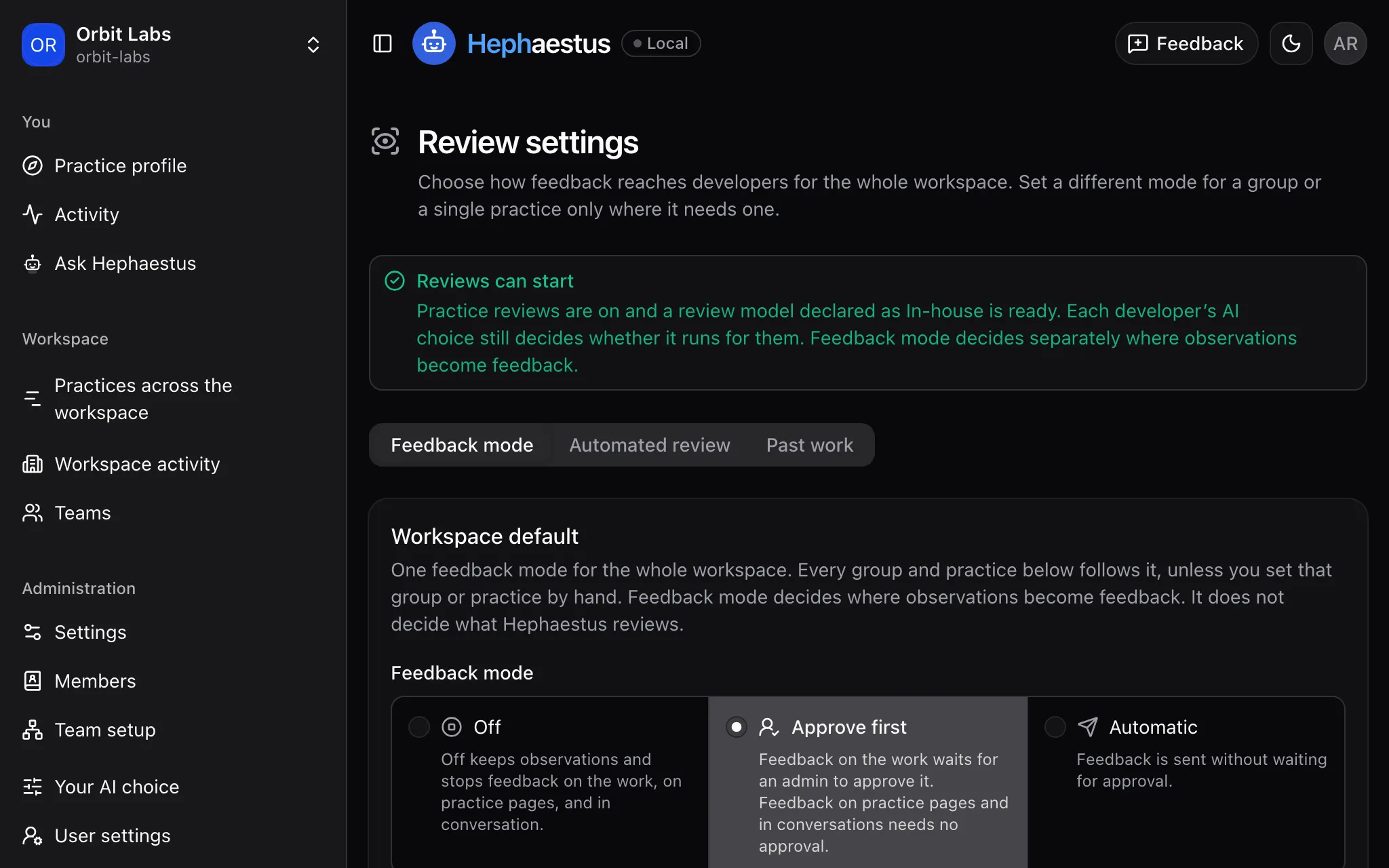
Choose the feedback mode
- Under Administration → Practices, open Review settings.
- In Feedback mode, choose the Workspace default.
- Optional: choose a different mode for a group or a practice in its row. The row then says Set here.
To return a group or a practice to the default, select Use the default in its row. To show only the rows with their own mode, turn on the Set by hand filter. A change of mode never approves feedback that already waits.
Turn on practice reviews
A new workspace starts with practice reviews off.
- Assign a review model on the AI models page, as AI models and spending describes.
- In Review settings, open Automated review.
- Turn on Start practice reviews.
- Choose how reviews start: Start from work activity, Start requested reviews, or both.
- Under Review scope, choose the repositories and the people whose work Hephaestus reviews.
- Select Review changes.
- If the change widens the scope, select Widen review scope.
The banner at the top of Review settings says Reviews can start when a review can run. Each developer's AI choice still decides whether a review runs for their work.
Start requested reviews covers the Request review button, reviews of past work, recurring checks, and /hephaestus review in a comment on a pull request or merge request.
Time between reviews (minutes) sets how long Hephaestus waits before it reviews the same work again.
Review past work
Past work reviews work from before practice reviews were on. You get an estimate of the work and the AI spend first, and nothing runs until you confirm. Its results appear on members' Practice profiles. Feedback on merged work is withheld. Select Pause to stop it, and Resume to continue from where it stopped.
Request a review
- Open Practice reviews.
- Open the work, for example from the Reviews tab.
- Select Request review.
Members can also request a review of their own work, as Activity describes. A request follows the review scope, the developer's AI choice, and the workspace budget.
Approve feedback before it posts
With Approve first, feedback on the work waits for a workspace admin. A badge beside Practice reviews shows how many pieces of feedback wait.
- Under Administration → Practices, open Practice reviews.
- Under Awaiting your approval, select Review with the number of waiting pieces.
- Read What will be sent.
- Select Approve and open next, or Approve and close on the last one.
To reject a piece of feedback, select Reject feedback, choose a reason, and select Reject feedback again. Rejected feedback stays on the Feedback list. To approve it after all, open it and select Approve after all, then Approve for delivery. The rejection stays in its history. Approval sends exactly the text that you read, to the developer that it names.
Control when feedback reaches the work
These switches are in Sending feedback, under Feedback mode:
- Send feedback pauses all comments and feedback from Hephaestus. Reviews and in-app feedback continue. Automatic feedback is not kept for later. Feedback that waits for approval stays in the queue.
- Post feedback after merge lets feedback post on work that is merged or closed. It is off by default.
A draft pull request or merge request gets no feedback on the work. When the developer marks it ready, a practice that reviews on Marked ready for review can comment.
Feedback that is held back for the state of the work appears under The work moved on, with a sentence that says why. A developer who turns off Comments on your work in User settings gets no new comments on their work.
Check delivery
A comment that Hephaestus began to write can show Delivery unconfirmed. The comment can already be on the work.
- Open the feedback.
- Select Check delivery.
The check asks GitHub or GitLab again and posts nothing. While a comment is unconfirmed, later reviews post no new feedback for that developer on that work. Hephaestus never posts a confirmed comment again.
After you withdraw feedback, a copy can stay on the work when GitHub or GitLab did not confirm its removal. The feedback then shows Retraction incomplete. If it also shows Retry withdrawal, select it to remove the copy again.
On Overview, the Partly delivered row counts feedback where one copy arrived and another failed or stayed unconfirmed. Delivered counts only feedback where every copy arrived.
Correct an observation
Open the observation from the Observations or Problems tab.
- Select Mark incorrect when the observation was wrong when it was made, and give a reason. The observation stays in history and stops supporting new feedback. Hephaestus withdraws only the comments that rest on it.
- Select Mark accepted to remove an observation from the open-problem lists, and give a reason. The outcome does not change, and acceptance does not claim that the developer fixed the work.
To reverse a mark, select Remove mark and give a reason. After an incorrect mark is removed, Hephaestus writes the original words back into the same comments and posts nothing again. A developer's disagreement is a response, not a mark. Practice feedback describes what the developer sees.
Withdraw feedback
Withdraw feedback when correct observations led to wrong words.
- Open the feedback.
- Select Withdraw feedback, add a note, and confirm.
Copies on the work are retracted, and the feedback leaves the developer's practice pages. The observations behind it stay unchanged. To reverse it, select Restore feedback. Restored feedback returns to the practice pages if its observations can still be shown, and nothing is sent again.
Unavailable evidence
Source permissions can hide summaries, explanations, examples, and quotations. The outcome and delivery facts stay visible. Hidden detail does not mean that the observation has no problems. You never see a developer's private notes or conversation text.
Troubleshooting
No review ran
Read the banner at the top of Review settings:
- Reviews are off: turn on Start practice reviews.
- Reviews cannot start: no review model is ready. Assign one in AI models.
If Automated review says Nothing can start a review, turn on Start from work activity or Start requested reviews.
Then check that the work is in the Review scope, and that a practice reviews this kind of work on this event. Practice feedback lists the messages that a developer sees.
Feedback did not appear on the work
Check these causes in order:
- The feedback mode is Off, or the feedback waits under Awaiting your approval.
- Send feedback is off.
- The work is a draft, or it is merged or closed. The feedback appears under The work moved on.
- The developer turned off Comments on your work.
- The feedback shows Delivery unconfirmed. Select Check delivery.