Workspace basics
Use this guide to switch workspaces or fix missing workspace content. A workspace holds one team’s repositories, members, practices, integrations, and settings. You can belong to several workspaces on one instance. The tasks below for creating a workspace and connecting repositories need admin permissions.
- Use the workspace switcher at the top of the sidebar to select an accessible workspace.
When you switch, Hephaestus keeps you on the same kind of page if the new workspace has it. If you were on a page for a specific person, conversation, practice, or other workspace item, the switch opens the new workspace’s home instead. The home is your Practice profile, or Activity if the workspace does not review practices. Options that name resources in the previous workspace, such as team filters, clear. Most other options reset too, but Activity pages keep their time range.
If a link points to a workspace you can no longer access, Hephaestus opens the home page of another workspace you can access. If there is none, the page says No workspace and that you are not a member of any workspace yet. Signing in opens the first workspace you can access.
Create a workspace
Creation permissions depend on the deployment. The default policy permits only instance admins to create workspaces.
For GitHub, when creation is available:
- Install the Hephaestus GitHub App on an organization.
Hephaestus creates the workspace from the installation.
For GitLab, when creation is available:
- Connect your account on the GitLab instance your deployment uses.
- Enter an access token for that account.
- Choose a group.
- Choose the projects to monitor: All projects, or Selected projects and then each project.
- Complete the creation wizard.
The workspace belongs to that GitLab account.
With All projects, the workspace monitors every project of the group and its subgroups, including projects added later. With Selected projects, it monitors only the projects that you chose. The choice covers project content, such as merge requests and issues.
It also decides who becomes a member. With All projects, members come from the whole group. With Selected projects, you become a member with Reporter access or higher to a chosen project, or through membership of a subgroup that contains it. Access through the whole group, or a group above it, is not enough. Workspace owners always stay members, and teams still come from the whole group. Membership changes appear after the next sync.
- If Create workspace is unavailable, ask an instance admin.
Repositories
How you manage repository access depends on the connection. For a GitHub App workspace, Hephaestus mirrors the repositories that you grant to the app. For a token-managed workspace, a workspace admin manages the monitored repositories.
For a GitHub App workspace:
- Change repository access in the app installation on GitHub.
For a token-managed workspace, as a workspace admin:
- Open Administration → Integrations → GitHub/GitLab → Manage repositories → Add a repository.
- Enter the full repository path.
For a GitLab project, Stop monitoring keeps it excluded from later discovery, webhooks, and syncs. The workspace keeps the work that Hephaestus already synced from the project, and the project appears under Stopped projects. To resume it, add its current full namespace path again. Stopping a project does not change anything in GitLab. With Selected projects, people who had access only through that project leave the workspace at the next sync.
To remove the kept work of a stopped GitLab project, select Remove synced work under Stopped projects. This is available while the GitLab connection is active. The project stays stopped. Practice reviews, feedback, and conversations about that work keep their usual retention.
CAUTION: Stop monitoring on a GitHub repository and Remove synced work on a stopped GitLab project both remove the repository from this workspace. If no other workspace monitors or keeps the same source repository, removal deletes its mirrored repository data. Shared mirrored data remains while another workspace monitors or keeps it. The upstream repository does not change.
The first sync takes longer for large repositories and long histories. Webhooks and scheduled reconciliation collect later changes.
Members and teams
Members and teams belong to one workspace:
- GitHub App workspaces mirror organization members, teams, and repository access from GitHub.
- GitLab workspaces mirror the connected group and its projects. With Selected projects, members come from the chosen projects and the subgroups that contain them.
- Workspace admins can review membership and role information under Administration.
If source-managed membership is incorrect:
- Correct it in GitHub or GitLab.
- Wait for the next sync.
Practices and AI
Workspace admins choose:
- The active engineering practices.
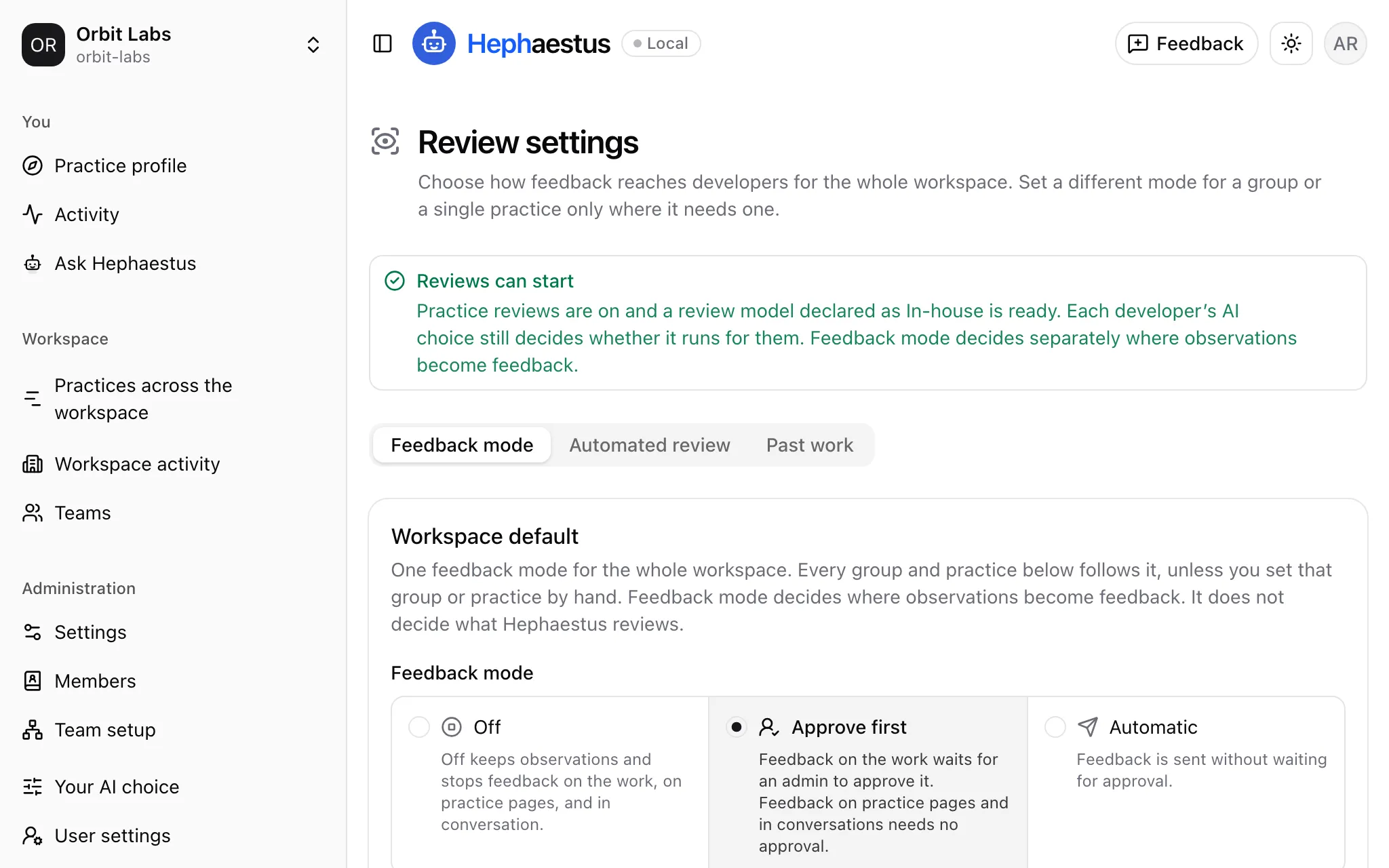
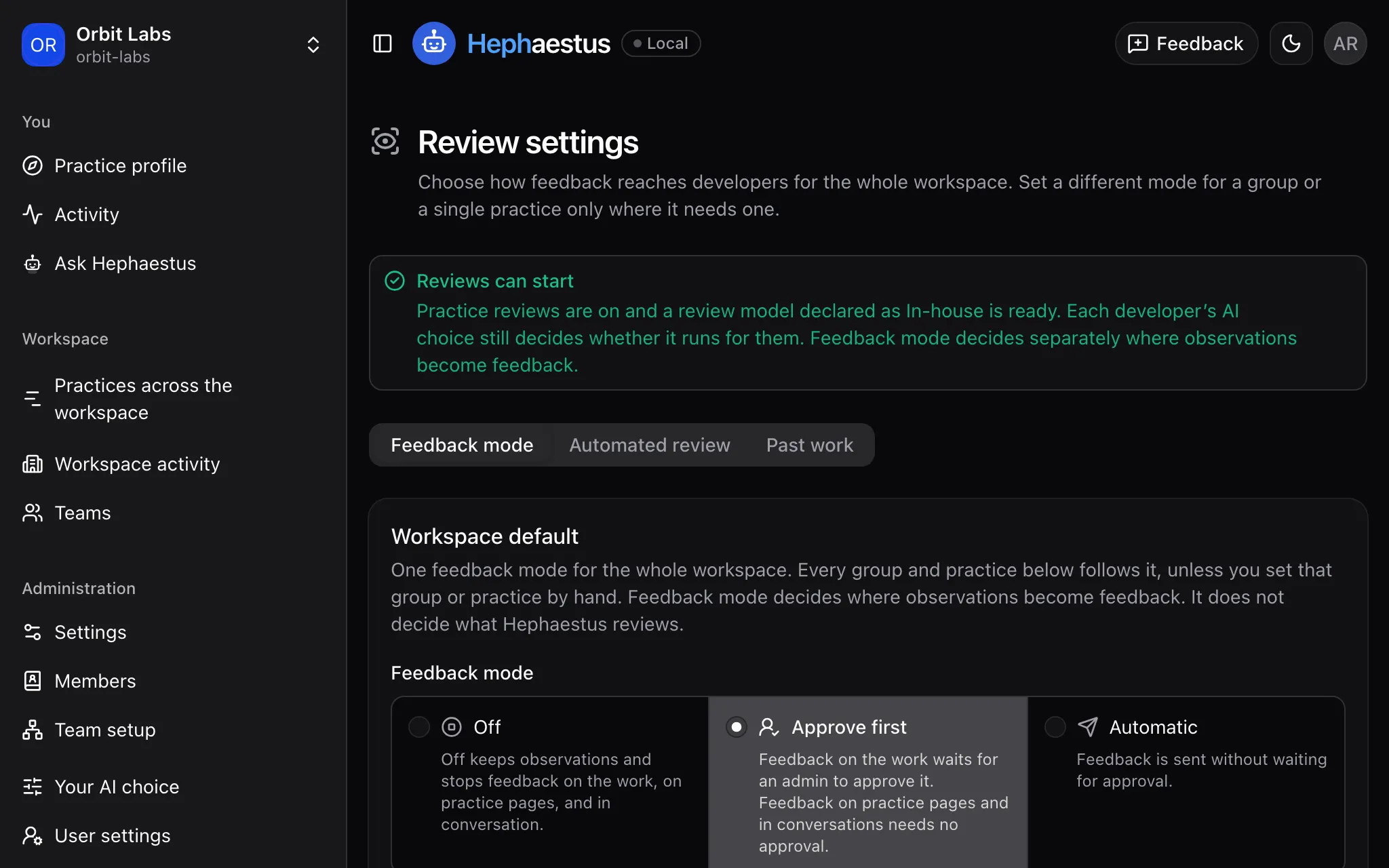
- The feedback mode for the workspace, a practice group, or one practice: Off, Approve first (the default), or Automatic.
- Whether practice reviews run automatically or permit manual requests.
- The connected AI model for practice reviews and conversations.
- The monthly AI spending cap.
Approve first keeps feedback on the work until a workspace admin approves it. Feedback on practice pages and in conversations needs no approval. Find the feedback mode under Administration → Practices → Review settings.
Ask Hephaestus is available when the workspace has a conversation model that meets your AI choice. If you choose No AI, Hephaestus does not answer. These settings apply only to that workspace. Activity is part of each workspace without its own setting. That guide explains how to hide members or teams from workspace activity.
Your AI choice
Your AI choice applies across all your workspaces on this instance. Workspace model settings do not change your answer. User settings explains In-house, Cloud, No AI, and the account links required during first-visit setup.
GitLab token alerts
Hephaestus checks GitLab tokens daily and rotates them before expiry when GitLab permits it. The connection page shows the expiry date, or says that the token has no expiry.
- If rotation fails or GitLab refuses the token, replace it in workspace integration settings.
Your repositories and synced work stay. Workspace admins can turn on Workspace connection alerts in User settings → Email notifications. These emails report tokens that need replacement, and recovery after rotation or replacement. Repeated checks of the same problem do not send duplicate alerts. GitHub App tokens renew automatically. Hephaestus does not track GitHub personal access token expiry.
Unavailable repositories
For an unreadable monitored GitHub or GitLab repository, Administration → Integrations shows Repository not found or not accessible. This does not prove deletion. The name may have changed, or the connection may have lost access. Hephaestus keeps the monitor and stored work.
After two consecutive unavailable responses, Hephaestus checks at most once every 24 hours. Recent sync and backfill wait while the repository is unavailable. A successful check clears the error and automatically resumes sync. Connection authentication errors, rate limits, and network errors keep their normal retry behavior.
To recover:
- Give the connection access to the repository again.
- As a workspace admin, select Sync now on the connection to check immediately.
Otherwise, the check waits for its next daily run.
Before you stop monitoring, read Repositories for the effect on mirrored data.
If the repository is no longer wanted in the workspace:
- For a GitHub App connection, change repository access in the installation.
- For a token-managed connection, remove it from the monitored repositories.
Your account and membership
Your account identifies you across connected provider identities and workspaces. Membership grants access to one workspace. Connecting a provider identity does not grant membership or AI permission. A member who leaves loses access while their existing history stays recorded. A workspace admin can restore membership through the normal role assignment.
Troubleshooting
A workspace is missing
- Confirm that your sign-in identity is linked to a workspace member.
A repository is missing
- Check the GitHub App installation or monitored repository list, as applicable to the connection.
A connection shows a sync error
Ask a workspace admin to check the affected connection. If you are a workspace admin:
- For repository errors, open Administration → Integrations → GitHub/GitLab → Manage repositories.
- For Slack errors instead, open Administration → Integrations → Slack.
- Read the affected resource’s last error.
- Check its access in the connected service.
- Run a new sync.
Each error clears after its affected sync path succeeds. A skipped pass keeps its error.
A team is missing
- Confirm that the team exists in the connected source platform.
- Confirm that it has synced.
A Practice profile is missing
- Ask a workspace admin whether practice reviews are on in this workspace.
Hephaestus does not answer
Who can use Ask Hephaestus explains what to do.