Practice profile
Use your Practice profile to read feedback, choose a next step, and check the evidence behind your practice standing. Other developers cannot see it. They see your observations only as part of the counts on Practices across the workspace. Your data in Hephaestus lists who else can.
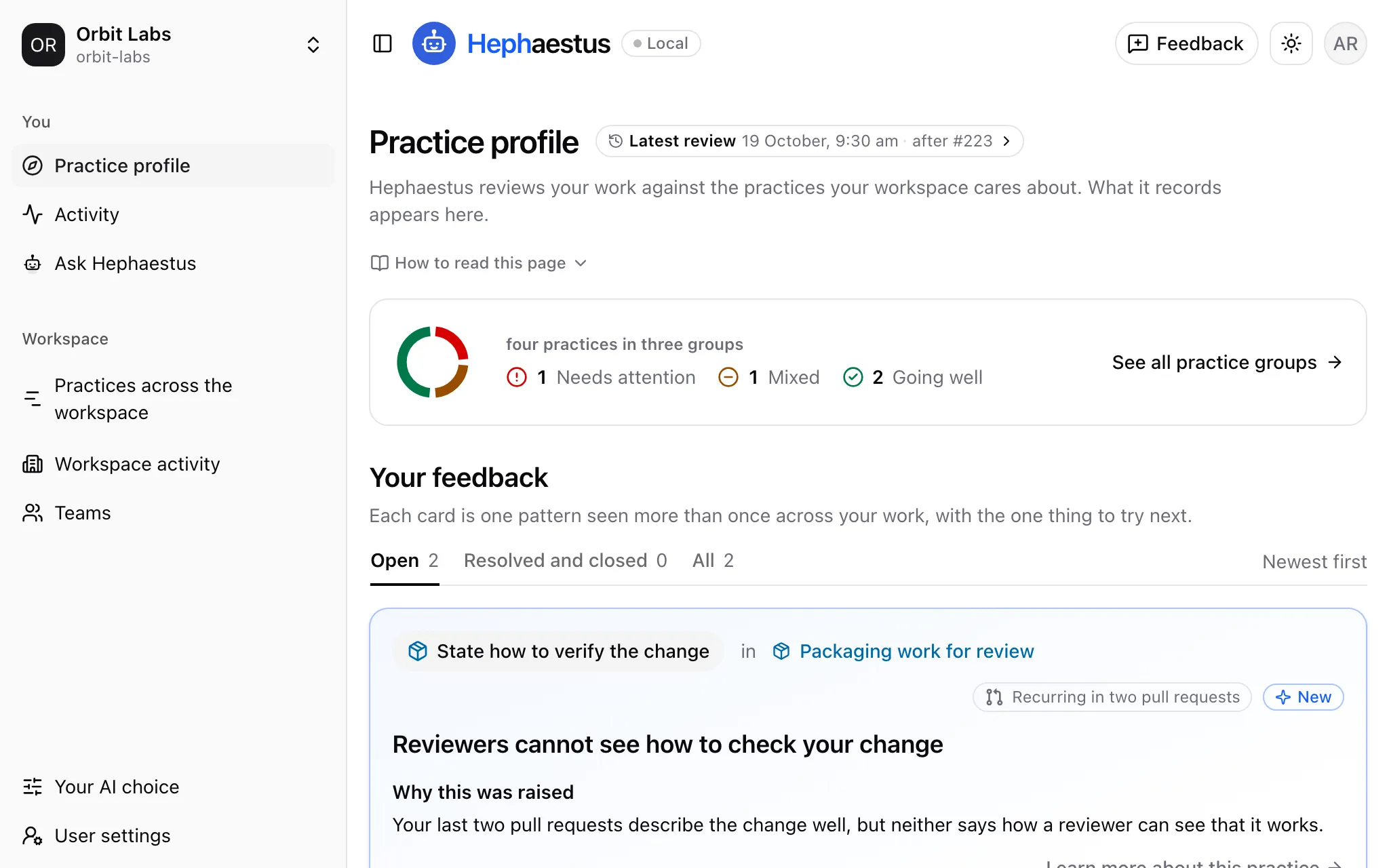
The profile uses practice review observations about your work on pull requests, merge requests, issues, conversations, and documents. This includes the reviews you write. Feedback on a pull request, merge request or issue addresses its author’s work. Feedback about your reviewing stays on your own Practice profile or in your own conversation. It never compares you with other developers.
Observations from an earlier version of practice review stay in your history, with a note that their evidence cannot be verified. Earlier feedback cards are marked as unverified history. They do not show whether the current standard is met and do not count as current proof. You can still read their retained text and evidence when access to their sources is available.
Opening your Practice profile
- Select a workspace.
- Under You, select Practice profile.
A workspace that reviews practices also opens here by default. A workspace that does not review practices has no Practice profile and opens on Activity. If you turn on the weekly digest, it links here for what changed and for new feedback that waits for you.
Reading the top of the page
The header says what Hephaestus reviews. How to read this page explains the rest. The chip beside the title reads Latest review with the date and reviewed work. It can instead say that the review stopped before it finished. While a review runs, the chip reads Review running and names the work. Both states open Reviews of your work.
A review appears here after it records an observation about your work. The chip keeps your latest recorded review even when it is older than the standing’s 90-day window or its evidence is hidden. Before your first recorded review, the chip reads No review yet.
A ring counts your practices by standing:
- Going well
- Mixed feedback
- Needs attention
- No standing yet: no review has given the practice a standing yet. It did not apply to your work, could not be judged, or no review has looked at it.
See all practice groups opens the table of practice groups. Your feedback follows the header.
A practice that your workspace no longer reviews leaves the page, with its standing and its feedback.
How to read this page
The How to read this page panel sits under the header's introduction and is open on your first visit. It explains:
- What a practice is.
- Each standing and each trend, with the sentence that explains it.
- When a feedback card appears and when it resolves.
- That group colors are not a rating.
- To close the panel, select How to read this page.
- To open it again, select How to read this page again.
This browser remembers your choice. The panel shows again in a new browser or after you clear this browser's data.
Your feedback
- Select Open to see feedback that still needs a response or more reviewed work.
- Read the evidence and next step on a card.
- Decide what to change, or record your response below the card.
For example, feedback about an unclear purpose can help you improve the description of your next pull request.
Each card describes one repeated pattern in your work. It states what reviews observed, on which work, and when. It also gives one next step to try. Feedback posted on a piece of work stays there and is not a card. Feedback on a piece of work tells you how to find it. The tabs show cards newest first:
- Open shows each open card. The page opens on this tab.
- Resolved and closed shows each resolved or closed card.
- All shows each card, including withdrawn cards.
A card resolves in one of two ways:
- By your work. Three consecutive pieces of reviewed work with no problem on the practice resolve the card. It reads Resolved by the work and names that work. Work that shows the problem again resets the count. Work reviewed for this practice on the card shows the count.
- By you. Your response can mark the card Marked as addressed or Marked as not applicable, with the date. The card then shows Marked by you without the green color of a resolution, because your next work confirms it. The count of clean work continues.
To record or undo your response:
- Under Or mark it yourself, select I fixed this or Does not fit my work. Point to or focus an answer to read what it does.
- To undo your response, select it again.
Both answers move the card to Marked by you. After Does not fit my work, a later review of the same work does not send you that point again. The card opens again when you undo the response.
If you think that the feedback is wrong, select Disagree beside Not helpful. Write one or two sentences on what is wrong, then select Send. Workspace admins read your sentence and can correct the observations or withdraw the card. The card stays open until then. Disagree saves a disagreement on the feedback. To take the disagreement back, select Disagree again.
If your workspace changes a practice after a review wrote its card, the card closes without resolution. It reads Closed, gives the date and reason, and stops counting work that shows no problem on the practice. A closed card stays on the page for 30 days after closure. A newer card for the same practice replaces the open card, so each practice has at most one open card.
A workspace admin can withdraw a card with incorrect words. If you already saw the card, a recent withdrawal appears under All as a short notice, without the card’s text. A card you had not seen never appears. A withdrawn card accepts no new response. It resolved nothing and says nothing about your standing. The observations stay unchanged.
Later reviews and conversations do not receive the withdrawn text. If the admin restores the card, it returns as it was.
To rate a card:
- At the bottom right of the card, select Helpful or Not helpful. Each is a small button with an icon. Point to it to read its name.
- Add a note about why. The note is optional.
A rating says whether the feedback helped you. It does not record a disagreement with the card. While a disagreement stands, its sentence is the one note on the card, so a rating adds no note. If you take back your rating, the disagreement stays.
Workspace admins can see that you have a current answer to feedback and when that record was made. A rating without an answer, including its time, stays private. Workspace admins read the sentence of a current disagreement on the observations behind it. They can mark an observation incorrect or withdraw the card. The card text stays private to you. Nobody else sees your other notes.
Reading a card
Each card has four parts:
- The top part says what the feedback is about. Beside its state, it names the work the pattern recurs in, for example Recurring in three pull requests. Hover, focus or tap it to see each piece of work, linked. Its explanation is under Why this was raised.
- Next step says what to do.
- Work reviewed for this practice shows how close the feedback is to resolving. The (i) beside it gives the rule. For example, the feedback resolves after three pieces of reviewed work come back clean. It shows your reviewed work along a line, oldest to newest, with the date of each piece under it. On the right, a gray line above the bar counts the clean work in a row. For example: 2 clean in a row · 1 more resolves it. Your answers are under the bar. On a narrow screen they are under the line.
- The bottom part gives the date and your rating.
The line shows up to five of the most recent pieces of work behind this feedback, ordered by when they were reviewed. A short line with … at its start shows that earlier pieces are not shown. Each piece has the same icon as its observations. A wrench shows work that needed attention, and a check in a circle shows clean work.
A thin upright mark with the caption Feedback created separates the work before the feedback from the work after it. It appears only when the line includes work reviewed before the feedback was created. Clean work before the feedback has a grey check, because only clean work after the feedback counts. The clean pieces in a row after the feedback are joined in green. Small empty dots show how many more clean pieces resolve the feedback.
To open the practice, select anywhere on the card or Learn more about this practice. The links, the buttons, and the work on the line keep their own action.
Reviews of your work
The title chip opens the reviews that recorded an observation about your work, newest first and grouped by day. A review that still runs may not appear yet, because a review appears only after it records an observation about your work.
A review that someone requested has the Requested tag. It is a real review and retains earlier observations in history. The newest eligible observation follows recorded order, regardless of who started it. An older review cannot replace newer proof. A marked current observation does not make an earlier observation current again. Repository scans have no developer and do not move your personal standing.
A review that a schedule started has the Scheduled tag. A review that caught up on work from before the connection has the Backfilled tag.
Each row names the work and links to the original. Its sequence on the work, such as Review 2 of 3, sits under the work, and its status stands over the time of the review. Your latest review is framed in blue and says Latest review in its top left corner.
What it saw counts the practices the review recorded about you on its first line, such as 8 practices. The line under it counts each outcome, such as 5 met · 2 not met · 1 does not apply. A review that is waiting or running and has recorded nothing yet says No practices yet. A review that ended with nothing recorded says No practices.
The list does not link the feedback a review gave. Open an observation of the review to read its feedback.
The filters work as on the admin Reviews tab:
- Work selects one or more kinds of work.
- Status selects one or more statuses: Running, Completed, Partial, Failed or Cancelled. The list holds only reviews that recorded an observation about your work. Thus, a review that failed or was cancelled before it recorded anything is not in it.
- The timeframe shows the last 7, 30, or 90 days, or All time, the initial value.
- Sort lists the newest review first, or the oldest.
- Reset clears every filter, and a line counts the reviews that match.
Each row ends in icon buttons: the play button is Request another review, the crosshair is Track this work. A line above the table says what each one does, and hovering or focusing a button shows its name. When a work has more than one review, its rows offer Track this work.
Track this work narrows the list to every review of that work. Tracking above the table names the work. Its close button removes the work filter. Reset clears every filter. With any filter on, or oldest first, no row is framed as the Latest review, because the top review might not be your latest.
Older reviews load when you scroll to the end of the list. You can also select View earlier reviews. If older reviews cannot load, select Retry.
Every review of a work reviewed more than once shows its sequence, such as Review 2 of 3, whatever the filters keep. Request another review appears in the row of a work's latest review when you may ask for one as author, assignee, or workspace admin. While a review runs and has recorded nothing, it does not count. The review before it offers Request another review until it records something. If a filter hides that review, no row of the work offers it.
See the reviewed practices opens a review. Its header names the work as a link to the original. The date and the status follow, then its sequence on the work when the list below it holds the review. To ask for another review, use Request another review in the list.
A table lists every practice the review reached, with its outcome, under a gray heading for each practice group. Select Open observation to read that observation in its practice. When you come back to the review, the row of the observation you opened last keeps a blue bar on its left edge. During a review, practices appear as the review reaches them.
These filters apply to the table:
- Outcome selects one or more outcomes, as on the admin Observations tab.
- Group selects one practice group.
- Practice filters names by the text you enter.
The practice group table
See all practice groups opens the All practice groups panel. Each row shows a workspace practice group, its standing, and a ring that splits its practices by standing. A practice group is a named set of related practices. The (i) beside the Practice group heading says so.
A sentence describes what changed since the previous review. New feedback has no sentence here, because its card says it. The rows appear by standing, with groups that need attention first.
- To reverse the order, select the Standing heading.
Some practices and groups have no standing yet. They fold into one line at the end of their table, so that they do not read as a gap. The line reads Practices with no standing yet or Practice groups with no standing yet.
- A practice folds here when no review in the last 90 days gave it a standing. The reviews found that it does not apply, could not judge it, or did not look at it.
- A group folds here when none of its practices has a standing yet. A group with no practice to review also folds here. That is a group with no practices, with all of them switched off, or with only practices that people review. A group that your workspace hides from developers is not listed.
To see the rows of a fold, select its line. The rows open in the table above it. Select a row to open the practice or the group.
Each folded row reads No standing yet. To see why, point at the label or select it. A practice reads No standing yet in its own panel too. If it does not apply to your work yet, its Guide tab says so.
Opening a group and a practice
- Select a group row.
- To see more detail, select a practice.
The group panel shows the description that your workspace wrote for the group, if there is one. It lists each practice with its standing, trend and what changed. The practice panel shows the practice's name and your standing on it, when available, then its tabs:
- Feedback shows the feedback about this practice. The panel opens on it.
- Observations shows observations by review, newest first. Open an observation to read its available explanation, problems and next steps, evidence, and recorded feedback links.
- Guide explains the practice. It appears when the practice has something to explain.
In an open observation, each problem shows its number and its severity. When the observation gave feedback that reached you, a box per piece says where it went. It names the work, the practice page or your conversation with Hephaestus, and it links to the feedback there. You answer the feedback where it is, not in the observation.
The newest observation opens on arrival. When you select Open observation on a review, the tab shows that work's observations, with the selected one open. An observation does not repeat how its review started, such as Requested. The list of reviews and the review itself show that.
The search field filters by words, by work such as #15, and by problem. Every observation the search finds has a blue bar on its left edge. Outcome selects one or more outcomes, as on a review. Reset appears once you search or choose an outcome, and it clears only those. The timeframe stays as you chose it.
The timeframe in the tab row, right of Guide, shows the last 7, 30 or 90 days, or All time, the initial value. It narrows both the feedback cards and the observations. Your open feedback card always shows, whatever the timeframe. A resolved card falls in the timeframe by the time it shows. An observation or card that you arrive at by a link shows even when it lies outside the timeframe. When the timeframe hides every card, the Feedback tab says so and offers Show all time.
The number beside Feedback and Observations counts what each tab shows, with the timeframe and the tab's filters applied.
The Guide tab starts with an introduction:
- Why the practice matters.
- A picture of the idea, if the practice has one. A screen reader reads its description.
- What work that meets the practice looks like. If the practice has a picture, this text is its caption.
If the practice has a longer guide, it follows the introduction with more pictures and links. If the practice never applied to your work, the tab also says so.
To open a practice from a feedback card, select Learn more about this practice.
A practice with open feedback shows the label Has open feedback beside its name. The label also shows the clean work since then, as on the card. It is a label, not a button.
Feedback on a piece of work
Feedback posted on a pull request, merge request, or issue stays on that work, not under Feedback.
- Open the practice panel.
- Select the Observations tab.
- Open the observation to read its available explanation, problems and next steps, evidence, and recorded feedback links.
Under Feedback from this observation, each piece the observation delivered to you is numbered. It says where it went and when it was delivered. Feedback that was not delivered does not appear. For feedback on the work, select Read the comment on the work to open the recorded comment. If several comments carry it, they read Read comment 1, Read comment 2 and so on. If no comment link was recorded, use the observation’s link to the original work.
For feedback on the practice page, the link opens the practice’s Feedback tab at that card, and a blue sheen crosses the card once. The tab keeps your newest feedback and drops closed feedback a month after it closed. If the tab no longer lists the card, a line says so. For feedback in your conversation with Hephaestus, the link opens the conversation. Back on the Observations tab, the observation is still open.
Feedback that a workspace admin withdrew does not appear here, in Reviews of your work, or on a review. If the admin restores it, it returns with your earlier response. Its links then open only the comments that still carry the feedback. After a restore, a comment on a line keeps its withdrawal notice.
A standing is read from your newest reviewed work, up to four pieces for each practice. Your latest work counts most, and older work counts less. When you change reviewed work, its last review keeps counting until a newer review of that work decides the practice again. For example, a practice that reviews a pull request only when it opens keeps counting that review after you push.
To see how much work a standing rests on, point at its badge, move to it with the keyboard, or tap it. The trend beside the badge, such as More positive recently, opens its own sentence in the same way. That sentence says what a trend compares: your latest reviewed work with the work before it, in the last 90 days. A practice or group with no standing yet shows Not enough to compare yet as its trend. A tap opens the sentence, not the row. To close the sentence, press Escape or select a different part of the page.
The sentence names the work it is read from. It also tells you how much of your work was reviewed for the practice or the group in the last 90 days. For example: "Read from your last 4 reviewed pull requests. In the last 90 days, 11 pull requests were reviewed for this practice."
A piece of work counts when a review could judge the practice on it. Eligible decided observations provide the evidence for these counts. Your standing uses automatic reviews first. Requested reviews contribute where those reviews establish no standing.
A practice or group marked Based on earlier reviews, the criteria might have changed includes historical assessments. Those assessments do not show whether the current criteria are met. They contribute no trend or feedback quotes. The mark reads the same when the original criterion version is unavailable. Only its icon differs.
A group counts each piece of work once, even when several of its practices judged it.
If fewer than three pieces of work back a standing, its sentence calls it an early read. The next piece of work can change an early read.
Each panel opens over the previous panel, with the page visible behind it. The short path above the title shows where you are, from the page to the panel.
- To go to a position on the path, select it.
- To go back one level, select Back.
Switching to the workspace
The foot of All practice groups, of a group, and of a practice has a button to the same place on Practices across the workspace. On a practice, the workspace page marks that practice in its group. See your own standing on the workspace page goes back to your profile. However often you switch, one Back returns to where you started. An instance admin who reads your profile with View as user does not see the button.
Practices across the workspace
Practices across the workspace shows where the developers in your workspace stand. Other developers appear only as counts. Each standing comes from AI review of the work and can be wrong. Your own standings stay in your Practice profile. The page keeps its explanations behind an info button (i). Point at the button, move to it with the keyboard, or tap it to read the explanation.
- In the sidebar, under Workspace, select Practices across the workspace. If the sidebar shows only icons, select the Practices across the workspace icon.
Your figures
Four tiles set your own figure beside the workspace's typical range for that figure. The range is the middle half, from the 25th to the 75th percentile. The time-window figures count developers with a standing within that window. Open feedback can also count developers without a standing. A blue marker shows your value.
- Pieces of work reviewed, Practices going well, and Practices needing attention use the selected time range. Select Last 7 days, Last 30 days, Last 90 days, or All time.
- Open feedback counts the feedback that is open now, whatever the time range.
The bars
All practice groups has one bar for each practice group. Each bar counts the developers with a standing by the standing that their Practice profile shows. Each developer counts once, however much of their work was reviewed. The You bracket spans the part you are in, but only when the bar counts you. It marks the part, not a point within it. The bars show standings now, so the time range does not change them.
The colors of the group names only tell the groups apart, here and in All practice groups of your profile. They are not a rating.
A practice that is reviewed only by people, or by nobody, has no standing and is not on the page. Turning feedback off does not remove the practice's standing.
If some standings include earlier assessments, the page says so. When your standing includes them, your own row carries Based on earlier reviews, the criteria might have changed, as your profile does.
Small counts
The page shows every count, however small, and everyone sees the same counts. It never names a developer, but a small count can tell other members where you stand:
- A small bar segment can identify one or two developers if a member knows them.
- A typical range of one or two developers can show their values.
- A member who compares the page before and after your next review can see the counts change.
A workspace admin can hide you from the workspace. Then the page does not count you.
Open a group
- Select Open group. A panel shows the group's bar and a bar for each of its practices.
- To see your own standing, select See your own standing at the foot of the panel. To go to one practice in your profile, select Open in your Practice profile on its row.
At the end of the page, See your own standing opens All practice groups in your profile.
When nothing has been reviewed yet
Before the first review, each practice counts as No standing yet. The chip reads No review yet and no feedback appears. The first review with a recorded observation fills the page. To request a review of eligible work, use Request review on Activity.