Set up your workspace
Set up a workspace so that its members get practice feedback. A workspace holds one team’s repositories, members, practices, integrations, and settings. Workspace admins and owners do these tasks under Administration in the sidebar.
Workspaces and connections
Each setting on this page applies only to its own workspace. Members can belong to several workspaces and switch between them.
A workspace connects to GitHub or GitLab in one of two ways:
- A GitHub App workspace mirrors the repositories, members, and teams that the Hephaestus GitHub App can see.
- A token-managed workspace uses an access token. A workspace admin chooses the monitored repositories.
Create a workspace
Creation permissions depend on the deployment. By default, only instance admins can create workspaces. If Create workspace is unavailable, ask an instance admin.
For GitHub:
- Select Create workspace, then GitHub.
- Install the Hephaestus GitHub App on an organization or on your personal account.
- When GitHub returns you to Hephaestus, select Continue.
By default, the page then says that an instance administrator must approve the installation. Ask your instance admin to adopt the installation. Hephaestus creates the workspace when they do. If your deployment lets everyone create workspaces, Hephaestus creates the workspace without approval.
For GitLab:
- Select Create workspace, then GitLab.
- Connect your account on the GitLab instance that your deployment uses.
- Enter an access token for that account.
- Choose a group.
- Choose the projects to monitor: All projects, or Selected projects and then each project.
- Finish the creation wizard.
The workspace belongs to that GitLab account. With All projects, the workspace monitors every project of the group and its subgroups, including projects added later. With Selected projects, it monitors only the projects that you chose.
The choice also decides who becomes a member. With All projects, members come from the whole group. With Selected projects, a person becomes a member with Reporter access or higher to a chosen project, or to a subgroup that contains it. Access through the whole group, or a group above it, is not enough. Workspace owners always stay members, and teams come from the whole group. Membership changes appear after the next sync.
Check the setup summary
A new workspace starts with practice reviews off and opens on Activity. While reviews are off, workspace admins see a line on Activity that links to Workspace settings.
- Under Administration, open Workspace settings.
- Read the Setup summary at the top.
- Use the link in a row to open the page that changes it.
| Row | What it shows |
|---|---|
| Repositories | Whether GitHub or GitLab is connected and the first sync has finished. During the first sync, it shows the progress. |
| Practice reviews | Whether practice reviews are on, and whether they start by themselves, on request, or both. |
| Practices | How many practices the workspace chose. |
| Review model | Whether a review model is ready for each AI choice that members can make. |
| Feedback mode | Approve first, Automatic, or how many practices use each mode. |
| First review | Whether a review has finished in this workspace. |
A row shows Unknown when Hephaestus cannot read its fact.
Before the first review, you can select Review recent work to review work from before reviews were on. Hephaestus never starts it by itself. Its results appear on members’ Practice profiles. Feedback on merged work is withheld.
Repositories
For a GitHub App workspace, change repository access in the app installation on GitHub. Hephaestus mirrors the repositories that you grant to the app.
For a token-managed workspace:
- Under Administration → Integrations, open GitHub or GitLab.
- Under Manage repositories, enter the full repository path in Add a repository.
The first sync takes longer for large repositories and long histories. Webhooks and scheduled syncs collect later changes.
Stop monitoring a repository
In a token-managed workspace, select Stop monitoring on the repository under Manage repositories. Nothing changes in GitHub or GitLab.
A stopped GitLab project stays out of later discovery, webhooks, and syncs. The workspace keeps the work that Hephaestus already synced, and the project appears under Stopped projects. To resume it, add its current full path again. With Selected projects, people who had access only through that project leave the workspace at the next sync.
To remove the kept work of a stopped GitLab project, select Remove synced work under Stopped projects. This needs an active GitLab connection. The project stays stopped. Practice reviews, feedback, and conversations about that work keep their usual retention.
Stop monitoring on a GitHub repository and Remove synced work on a GitLab project remove the repository from this workspace. If no other workspace monitors or keeps the same repository, Hephaestus deletes its mirrored data.
Manage members and roles
Members and teams come from the connected service:
- A GitHub App workspace mirrors organization members, teams, and repository access from GitHub.
- A GitLab workspace mirrors the connected group. With Selected projects, members come from the chosen projects and the subgroups that contain them.
If a member or team is wrong, correct it in GitHub or GitLab and wait for the next sync. To configure teams, open Team setup.
A member has one role: Owner, Admin, or Member. To change a role:
- Under Administration, open Members.
- Find the member.
- Choose a role in the member’s role list.
A role that you set shows Set in Hephaestus. To return to the role from the connected service, select Use GitHub role or Use GitLab role.
Only an owner can make someone an owner, or take the owner role from another owner. Hephaestus asks you to confirm these changes and changes to your own role. To make or remove an owner, you must have signed in recently. A workspace always keeps at least one owner.
A member who leaves loses access, and their history stays recorded.
When someone grants or removes your admin or owner role, Hephaestus sends you an email. The other owners of the workspace also get an email. The email names who made the change, or the sync with GitHub or GitLab, when it happened, and where to review it. These changes send no email:
- A change that lowers your own role.
- A member who joins or leaves without the admin or owner role.
- Roles read from the first member list imported from each GitHub or GitLab connection, including people already in the workspace.
A replacement connection starts with a silent first import too. Later grants and role changes send an email.
These emails go to your verified address. You cannot turn them off.
Practices and AI
Workspace admins choose:
- The practices of the workspace, in Practice setup under Administration → Practices. Add them from the instance catalog.
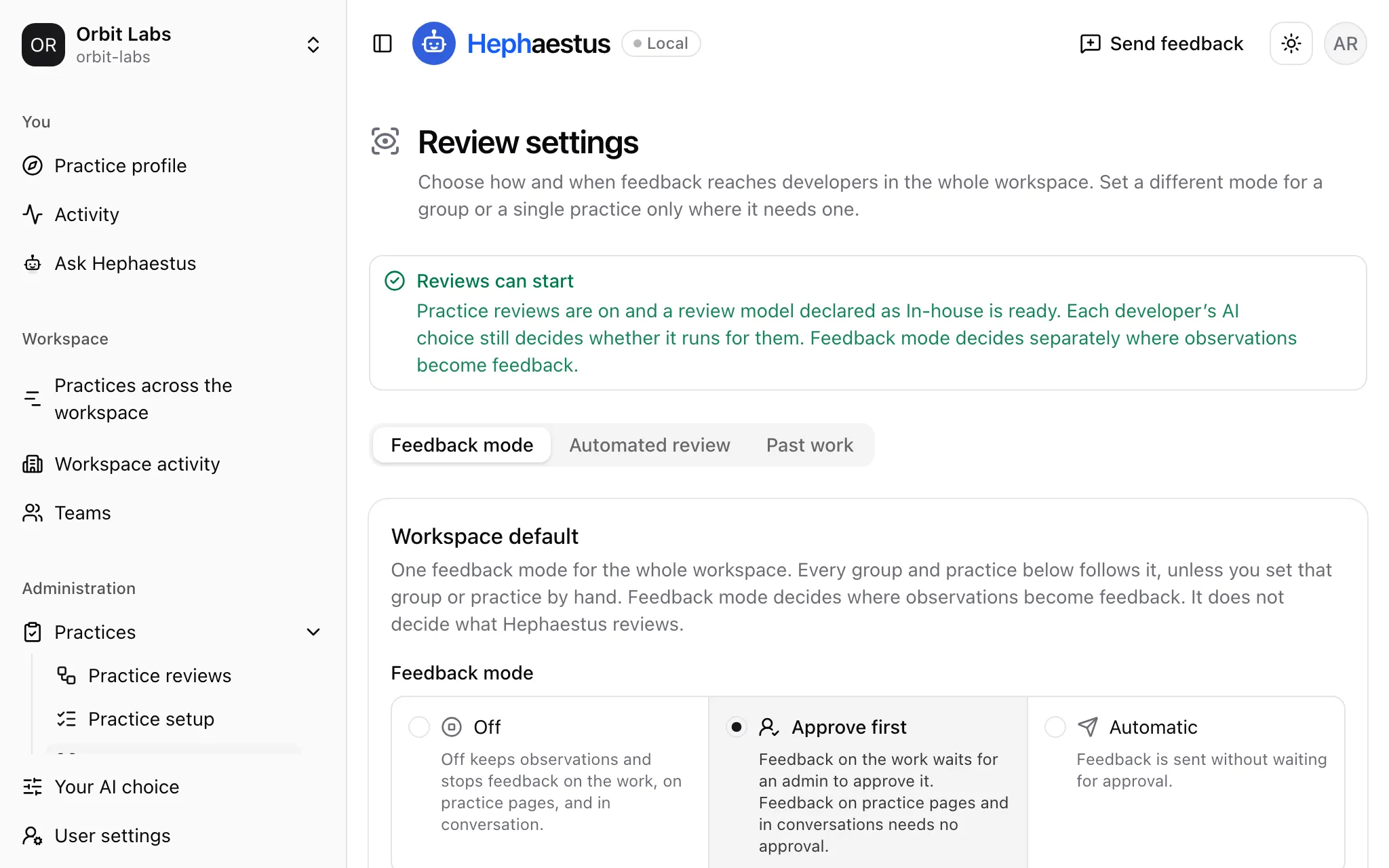
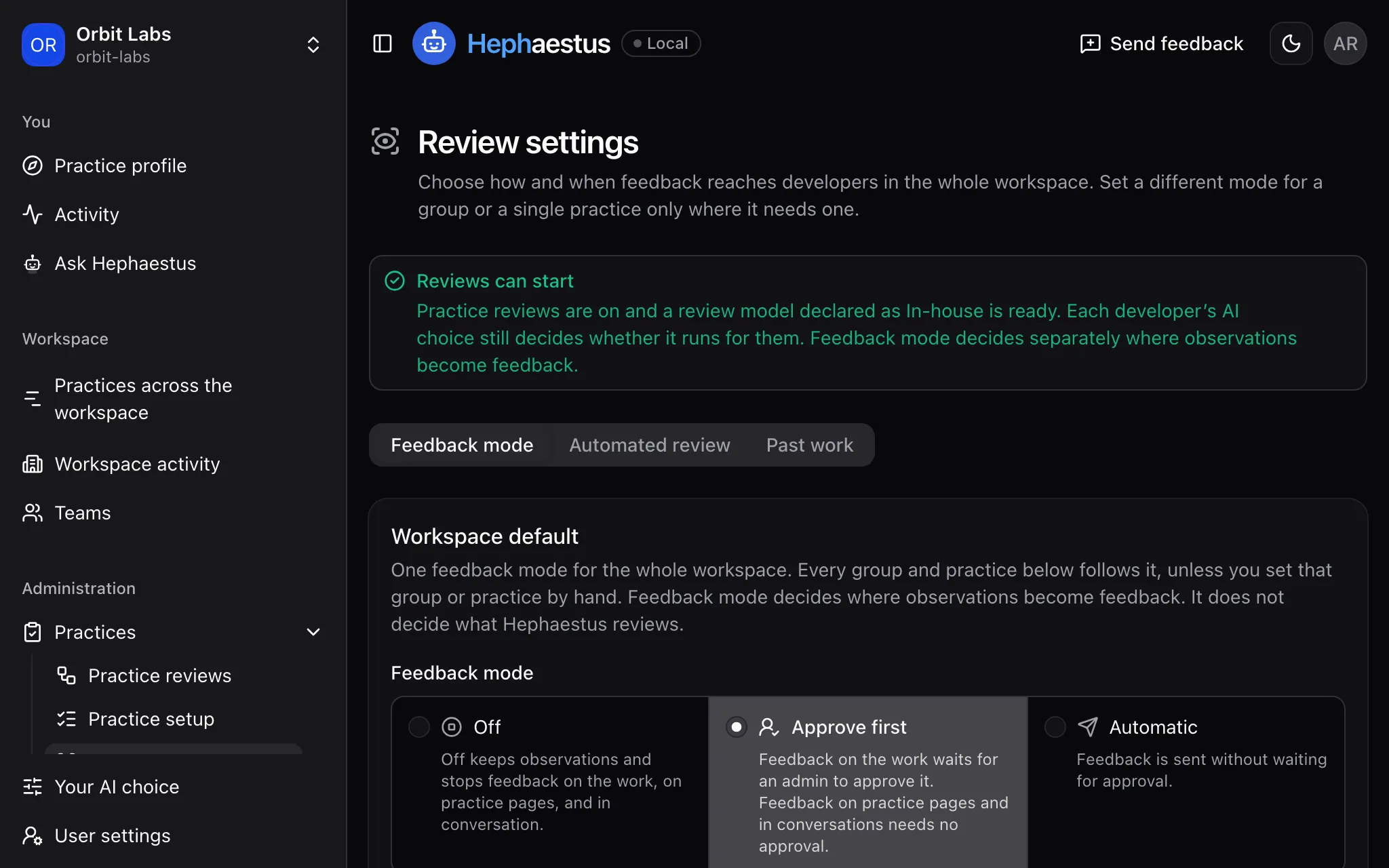
- The feedback mode, in Review settings under Administration → Practices. It applies to the workspace, a practice group, or one practice: Off, Approve first (the default), or Automatic.
- Whether practice reviews start by themselves, on request, or both, also in Review settings.
- The models for practice reviews and conversations, in AI models.
- A monthly cap on the workspace’s own AI provider, in AI usage.
Approve first keeps feedback on the work until a workspace admin approves it. Feedback on practice pages and in conversations needs no approval.
To hide members or teams from workspace activity, see Activity.
Approve feedback before it posts
With Approve first, feedback on the work waits for a workspace admin.
- Under Administration → Practices, open Practice reviews. A badge shows how many pieces of feedback wait.
- Under Awaiting your approval, select the Review button.
- Read What will be sent.
- Select Approve and open next, or Approve and close on the last one.
To reject a piece of feedback, select Reject feedback, choose a reason, and select Reject feedback again.
Your AI choice
Each member chooses which AI may handle their work, and the choice applies in all their workspaces. Workspace model settings do not change it. Choose models that meet the choices of your members. User settings explains In-house, Cloud, and No AI.
Replace a refused token
Hephaestus checks GitLab tokens daily and rotates them before expiry when GitLab permits it. The connection page shows the expiry date, or says that the token has no expiry. When GitHub or GitLab refuses a token, Administration → Integrations says, for example, GitHub no longer accepts this token. Sync cannot continue until you replace the token.
- Under Administration → Integrations, open GitHub or GitLab.
- Enter the token in New personal access token.
- Select Replace token.
Your repositories and synced work stay. If the GitLab connection was disconnected, the button reads Reconnect GitLab. Then Hephaestus syncs the work again, and you select your projects again. To get an email when a token needs replacement, turn on Workspace connection alerts in User settings → Email notifications. GitHub App tokens renew automatically. Hephaestus does not track the expiry of GitHub personal access tokens.
Unavailable repositories
When Hephaestus cannot read a monitored repository, Administration → Integrations shows Repository not found or not accessible. The repository may be deleted or renamed, or the connection may have lost access. Hephaestus keeps the repository and its stored work, and sync waits.
To recover:
- Give the connection access to the repository again.
- Select Sync now on the connection.
Otherwise, Hephaestus checks the repository again about once a day. A successful check clears the error and resumes sync.
If the workspace does not need the repository, remove it as Repositories describes.
More admin tasks
- Connect Slack or Outline to a workspace.
- Set up AI models and Member onboarding for a workspace.
- Publish a public activity page.
Troubleshooting
A member cannot see the workspace
Membership comes from GitHub or GitLab.
- Under Administration, open Members and look for the person.
- If they are missing, correct their access in GitHub or GitLab.
- Wait for the next sync.
A repository is missing
For a GitHub App workspace, check the repository access of the app installation. For a token-managed workspace, check the list under Manage repositories.
A connection shows a sync error
- For repository errors, open Administration → Integrations, then GitHub or GitLab, then Manage repositories.
- For Slack errors, open Administration → Integrations → Slack.
- Read the last error of the affected resource.
- Check its access in the connected service.
- Select Sync now.
Each error clears after its sync succeeds.
Hephaestus could not confirm the browser of a connection
Hephaestus finishes a GitHub or Slack connection only in the browser that started it, within 10 minutes. If the provider sends you back in another browser, if the connection took longer, or if you reload a finished connection, Hephaestus connects nothing.
- Open Hephaestus in the browser that you use to sign in to the provider.
- Open Administration → Integrations and start the connection again.
A team is missing
- Check that the team exists in GitHub or GitLab.
- Wait for the next sync.
Members do not see a Practice profile
Practice reviews are off in this workspace. Turn them on in Review settings, and check the setup summary.
Hephaestus does not answer
Who can use Ask Hephaestus explains what to do.